
准备工作
- 确保你已经有GitHub账号和cloudflare账号
- 一个托管在cf的域名
安装Git与Hugo
安装Git
- Git官网 https://git-scm.com/downloads 一路下一步即可
安装Hugo
hugo 有两个版本,标准版和扩展版,推荐使用扩展版。
- Github Releases https://github.com/gohugoio/hugo/releases 下载解压
我选择extended版本,如: hugo_0.144.0_windows-amd64.zip
放入指定目录如:D:\hugo\hugo.exe - 添加系统变量
win+R输入sysdm.cpl → 高级 → 环境变量 → 系统变量找到Path变量 → 编辑 → 新建 → 将hugo.exe的目录加入,如:D:\hugo - 确认安装成功
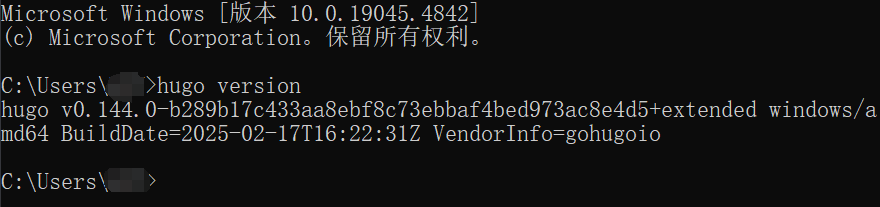
cmd中输入hugo version,输出以下即为成功
1C:\Users\User>hugo version
2hugo v0.144.0-b289b17c433aa8ebf8c73ebbaf4bed973ac8e4d5+extended windows/amd64 BuildDate=2025-02-17T16:22:31Z VendorInfo=gohugoio
新建Hugo博客
- 新建一个目录,用来存放博客的根目录,如:
D:\hugo,之后都将这个目录称为根目录。 - cmd命令,其中blog可以自定义,也是生成的文件夹名
1hugo new site blog
应用Hugo主题
- 来到
根目录下,cmd命令:
1git clone https://github.com/CaiJimmy/hugo-theme-stack/ themes/hugo-theme-stack
可以看到如下文件结构
 1blog/
 2├── archetypes/  该目录包含新内容的模板,查看[详细资料](https://gohugo.io/content-management/archetypes/)
 3│   └── default.md
 4├── assets/  该目录包含通常通过资产管道传递的全局资源。这包括图像、CSS、Sass、JavaScript 和 TypeScript 等资源。查看[详细资料](https://gohugo.io/hugo-pipes/introduction/)
 5├── content/  该目录包含标记文件(通常是 Markdown)和构成站点内容的页面资源。查看[详细资料](https://gohugo.io/content-management/organization/)
 6├── data/  该目录包含数据文件(JSON、TOML、YAML 或 XML),用于增强内容、配置、本地化和导航。查看[详细资料](https://gohugo.io/content-management/data-sources/)
 7├── i18n/  该目录包含多语言站点的翻译表。查看[详细资料](https://gohugo.io/content-management/multilingual/)
 8├── layouts/  layouts 目录包含用于将内容、数据和资源转换为完整网站的模板。查看[详细资料](https://gohugo.io/templates/)
 9├── static/  该目录包含的文件将在您构建站点时复制到公共目录。例如:、 和验证站点所有权的文件。在引入页面捆绑包和资产管道之前,该目录还用于图像、CSS 和 JavaScript。
10├── themes/  该目录包含一个或多个主题,每个主题都位于其自己的子目录中
11└── hugo.toml  站点配置,可能分为多个子目录和文件。对于配置最少的项目或不需要在不同环境中表现不同的项目,在项目根目录中命名的单个配置文件就足够了。查看[详细资料](https://gohugo.io/getting-started/configuration/#configuration-directory)
配置&美化
- 来到
根目录\themes\hugo-theme-stack\exampleSite文件夹下,将hugo.yaml文件复制至根目录下,如果根目录下有别的配置文件如hugo.toml/JSON,将其删掉。然后打开hugo.yaml,根据模板进行修改。 - 为了打造更符合自己心意的站点,可能需要diy很多配置,所以可以将主题的资源复制到个人站点。在
根目录文件夹下,cmd命令:
1xcopy themes\hugo-theme-stack\archetypes archetypes\ /E /I
2xcopy themes\hugo-theme-stack\assets assets\ /E /I
3xcopy themes\hugo-theme-stack\data data\ /E /I
4xcopy themes\hugo-theme-stack\i18n i18n\ /E /I
5xcopy themes\hugo-theme-stack\layouts layouts\ /E /I
- 其中
favicon网站图标favicon.ico需要放到根目录\static下,然后配置是favicon: /favicon.ico - 其中
avatar侧栏头像avatar.png需要放到根目录\assets\img下,然后配置是src: img/avatar.png - 如果需要搜索和归档栏,需要在主题模板
根目录\themes\hugo-theme-stack\exampleSite\content\page中找到对应的.md文件并放到根目录同样的文件夹下如:根目录\content\page\search\index.md并按需修改。 - 接下来是样式的美化,供参考,
根目录\assets\scss下新建custom.scss,并编辑:
  1//----------------------------------------------------
  2// 页面基本配色
  3:root {
  4    // 全局顶部边距
  5    --main-top-padding: 30px;
  6    // 全局卡片圆角
  7    --card-border-radius: 25px;
  8    // 标签云卡片圆角
  9    --tag-border-radius: 8px;
 10    // 卡片间距
 11    --section-separation: 40px;
 12    // 全局字体大小
 13    --article-font-size: 1.8rem;
 14    // 行内代码背景色
 15    --code-background-color: #f8f8f8;
 16    // 行内代码前景色
 17    --code-text-color: #e96900;
 18    // 暗色模式下样式
 19    &[data-scheme="dark"] {
 20      // 行内代码背景色
 21    --code-background-color: #f8f8f814;
 22      // 行内代码前景色
 23    --code-text-color: #e96900;
 24      // 暗黑模式下背景色
 25    //--body-background: #000;
 26      // 暗黑模式下卡片背景色
 27    //--card-background: hsl(225 13% 8% / 1);
 28    }
 29  }
 30  //------------------------------------------------------
 31  // 修复引用块内容窄页面显示问题
 32  a {
 33    word-break: break-all;
 34  }
 35
 36  code {
 37    word-break: break-all;
 38  }
 39
 40  //---------------------------------------------------
 41  // 文章封面高度
 42  .article-list article .article-image img {
 43    width: 100%;
 44    height: 200px !important;
 45    object-fit: cover;
 46
 47    @include respond(md) {
 48        height: 250px !important;
 49    }
 50
 51    @include respond(xl) {
 52        height: 285px !important;
 53    }
 54  }
 55
 56  //--------------------------------------------------
 57  // 文章内容图片圆角阴影
 58  .article-page .main-article .article-content {
 59    img {
 60      max-width: 96% !important;
 61      height: auto !important;
 62      border-radius: 8px;
 63    }
 64  }
 65
 66  //------------------------------------------------
 67  // 文章内容引用块样式
 68  .article-content {
 69    blockquote {
 70      border-left: 6px solid #d57b5e !important;
 71      background: #ffefdf;
 72    }
 73  }
 74  [data-scheme="dark"] {
 75    .article-content {
 76      blockquote {
 77        border-left: 6px solid #d57b5e !important;
 78        background: #d57c5e54;
 79      }
 80    }
 81  }
 82  // ---------------------------------------
 83  // 代码块样式修改
 84  .highlight {
 85    max-width: 102% !important;
 86    background-color: var(--pre-background-color);
 87    padding: var(--card-padding);
 88    position: relative;
 89    border-radius: 20px;
 90    margin-left: -7px !important;
 91    margin-right: -12px;
 92    box-shadow: var(--shadow-l1) !important;
 93
 94    &:hover {
 95      .copyCodeButton {
 96        opacity: 1;
 97      }
 98    }
 99
100    // keep Codeblocks LTR
101    [dir="rtl"] & {
102      direction: ltr;
103    }
104
105    pre {
106      margin: initial;
107      padding: 0;
108      margin: 0;
109      width: auto;
110    }
111  }
112
113  // light模式下的代码块样式调整
114  [data-scheme="light"] .article-content .highlight {
115    background-color: #fff9f3;
116  }
117
118  [data-scheme="light"] .chroma {
119    color: #ff6f00;
120    background-color: #fff9f3cc;
121  }
122
123
124
125  //-------------------------------------------
126  // 设置选中字体的区域背景颜色
127  //修改选中颜色
128  ::selection {
129    color: #fff;
130    background: #34495e;
131  }
132
133  a {
134    text-decoration: none;
135    color: var(--accent-color);
136
137    &:hover {
138      color: var(--accent-color-darker);
139    }
140
141    &.link {
142      color: #4288b9ad;
143      font-weight: 600;
144      padding: 0 2px;
145      text-decoration: none;
146      cursor: pointer;
147
148      &:hover {
149        text-decoration: underline;
150      }
151    }
152  }
153
154  //-------------------------------------------------
155  //文章封面高度更改
156  .article-list article .article-image img {
157    width: 100%;
158    height: 150px;
159    object-fit: cover;
160
161    @include respond(md) {
162      height: 200px;
163    }
164
165    @include respond(xl) {
166      height: 305px;
167    }
168  }
169
170  //---------------------------------------------------
171  // 全局页面布局间距调整
172  .main-container {
173    min-height: 100vh;
174    align-items: flex-start;
175    padding: 0 15px;
176    gap: var(--section-separation);
177    padding-top: var(--main-top-padding);
178
179    @include respond(md) {
180      padding: 0 37px;
181    }
182  }
183
184  //--------------------------------------------------
185  //页面三栏宽度调整
186  .container {
187    margin-left: auto;
188    margin-right: auto;
189
190    .left-sidebar {
191      order: -3;
192      max-width: var(--left-sidebar-max-width);
193    }
194
195    .right-sidebar {
196      order: -1;
197      max-width: var(--right-sidebar-max-width);
198
199      /// Display right sidebar when min-width: lg
200      @include respond(lg) {
201        display: flex;
202      }
203    }
204
205    &.extended {
206      @include respond(md) {
207        max-width: 1024px;
208        --left-sidebar-max-width: 25%;
209        --right-sidebar-max-width: 22% !important;
210      }
211
212      @include respond(lg) {
213        max-width: 1280px;
214        --left-sidebar-max-width: 20%;
215        --right-sidebar-max-width: 30%;
216      }
217
218      @include respond(xl) {
219        max-width: 1453px; //1536px;
220        --left-sidebar-max-width: 15%;
221        --right-sidebar-max-width: 25%;
222      }
223    }
224
225    &.compact {
226      @include respond(md) {
227        --left-sidebar-max-width: 25%;
228        max-width: 768px;
229      }
230
231      @include respond(lg) {
232        max-width: 1024px;
233        --left-sidebar-max-width: 20%;
234      }
235
236      @include respond(xl) {
237        max-width: 1280px;
238      }
239    }
240  }
241
242  //-------------------------------------------------------
243  //全局页面小图片样式微调
244  .article-list--compact article .article-image img {
245    width: var(--image-size);
246    height: var(--image-size);
247    object-fit: cover;
248    border-radius: 17%;
249  }
250
251  //----------------------------------------------------
252  //固定代码块的高度
253  .article-content {
254    .highlight {
255        padding: var(--card-padding);
256        pre {
257            width: auto;
258            max-height: 20em;
259        }
260    }
261  }
262
263  //--------------------------------------------------
264  // 修改首页搜索框样式
265  .search-form.widget input {
266    font-size: 1.5rem;
267    padding: 44px 25px 19px;
268  }
269
270
271
272//--------------------------------------------------
273//归档页面双栏
274/* 归档页面两栏 */
275@media (min-width: 1024px) {
276    .article-list--compact {
277      display: grid;
278      grid-template-columns: 1fr 1fr;
279      background: none;
280      box-shadow: none;
281      gap: 1rem;
282
283      article {
284        background: var(--card-background);
285        border: none;
286        box-shadow: var(--shadow-l2);
287        margin-bottom: 8px;
288        border-radius: 16px;
289      }
290    }
291  }
配置说明
hugo.yaml 字段说明:
- baseurl 博客的URL
- languageCode 语言代码,例如zh-cn
- theme 主题
- paginate 每页显示的文章数量
- title 网站名称
- copyright 网站底部的个性化说明
- DefaultContentLanguage 默认显示的语言
- hasCJKLanguage CJK字数统计,如果编码是 zh-cn,需要改成 true
- languages 多语言设置,如不需要只需要把别的多余的语言删除即可
- services/googleAnalytics Google分析代码
- params/favicon 站点logo
- params/footer/since 创建博客的年份
- params/dateFormat/published 发布时间格式
- params/dateFormat/lastUpdated 最后更新时间格式
- params/sidebar/emoji 头像右下角的emoji
- params/sidebar/subtitle 位于头像下面的副标题
- params/sidebar/avatar/src 头像图片位置,相对 assets/ 目录
- menu/social 社交信息配置
上传至GitHub并用Cloudflare Pages部署
GitHub 配置
在 Github 中创建新的代码仓库,由于我们将使用 Cloudflare Pages 部署网站而非直接使用 Github,因此仓库可以设为私密状态,之后将本地代码提交到代码仓库中:
1git init
2git config --global user.name "<用户名>"
3git config --global user.email "<邮箱>"
4git remote add origin https://github.com/<用户名>/<GitHub仓库名>.git
5
6git add --all
7git commit -m "first commit"
8git push origin master
Cloudflare Pages 部署
- 打开 Cloudflare 官网,并登录你的 Cloudflare 账户。
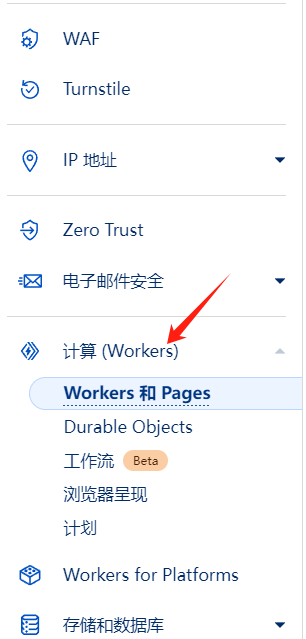
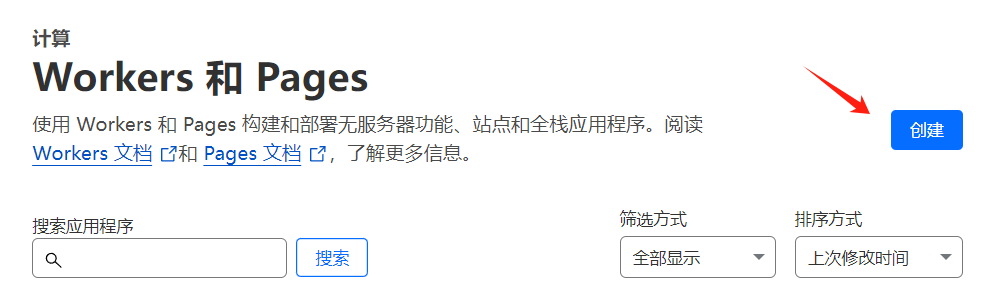
- 进入
Workers 和 Pages页面并点击创建
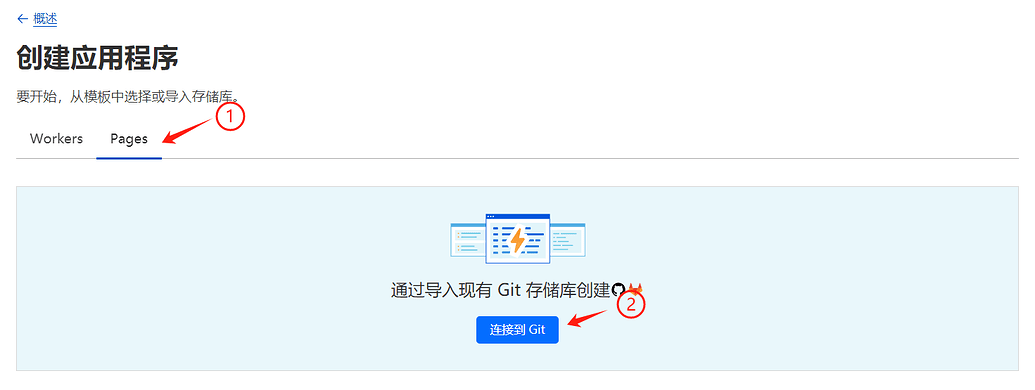
- 选择
Pages选项卡,并点击连接到 git
- 选择
github并登录选择刚才创建的代码仓库 - 配置构建设置:生产分支选择
master,框架预设选择 Hugo,需要注意的是在环境变量这一栏中需要配置HUGO_VERSION为当前 Hugo 最新的版本号,如图。
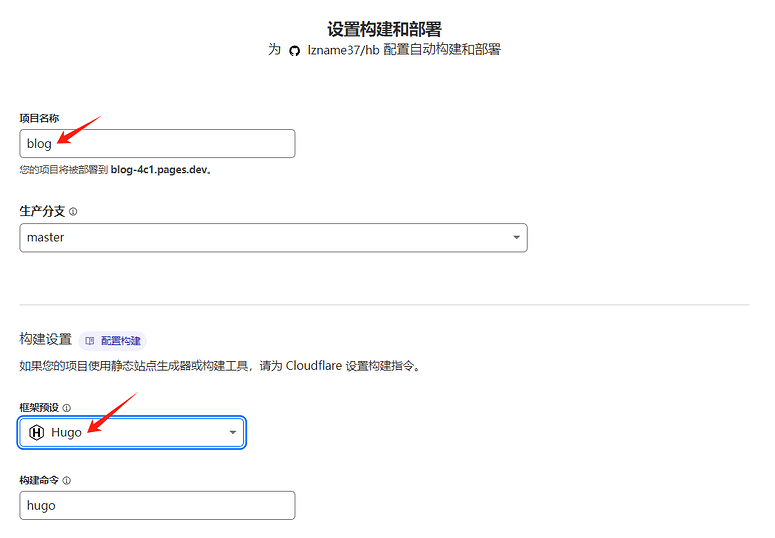
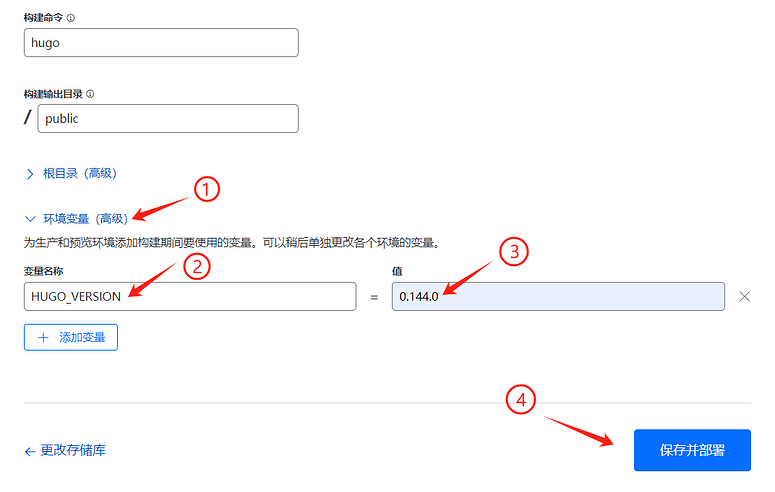
- 之后点击保存并部署,就可以完成自动化部署配置,此后你对博客的所有更新只需提交到 github 的 master 分支, Cloudflare 将会自动拉取最新代码并进行部署操作。
- 然后在刚刚创建的 Cloudflare Pages 中的自定义域选项卡中绑定你在cf托管的域名,此后就可以通过你的域名来访问博客啦
新建文章
新建的文章会根据 archetypes/default.md 模板创建在 content/ 目录下
1hugo new content content/post/my-first-post.md
之后在你的 content/post 文件夹中会创建你的第一篇文章,打开后可以发现它的 draft = true,说明它还是一篇草稿,此时即使发布了你的网站,该文章也不会被浏览者看见。但是你可以通过在根目录下cmd命令启动 Hugo 服务,并看到所有草稿文章:
1hugo server -D
编辑时可以构建本地博客实时预览,默认网址 http://localhost:1313/
使用本地图片
后面有用 CloudFlare R2 作图床的教程,不太推荐使用本地图片。
点击显示
Hugo 会根据你内容文件的路径以及 permalinks 配置来生成 URL 和文件夹结构
例如:
1├── post
2│   └── blog
3│       └── images
4│           └── test.png
5│   └── first.md
编译以后:
1├── public
2│   └── p
3│       └── first
4│           └── index.html
5│   └── post
6│       └── blog
7│           └── images
8│               └── test.png
会导致本地图片的相对路径改变,所以在使用本地图片时应相对 content/ 路径
在 first.md 中使用
1
搭建 Cloudflare R2 免费图床
- 平时写博客都是使用md格式,图片需要有外链。
为什么用 CloudFlare R2
- 有白嫖额度
- 免费CDN
- 绑定域名不需要备案
购买 R2
虽说是购买,但是我们的赛博大善人 Cloudflare 也给了相当多的免费额度,对于一个小博客来说绰绰有余。就算是超出了免费额度,续费也就一角钱一个G,相比腾讯云和阿里云的对象存储要便宜得多。
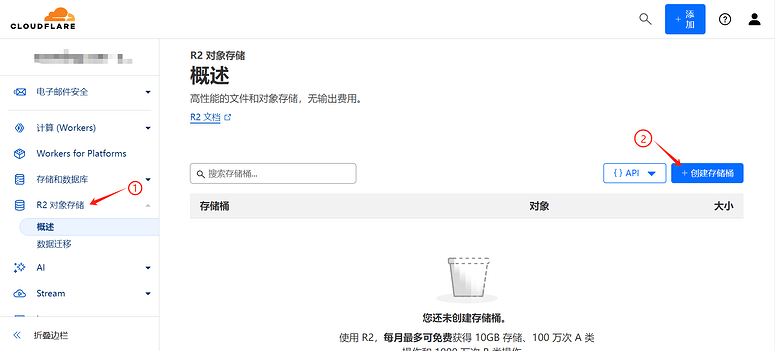
- 命名存储桶;
- 选择一个离博客浏览人群近点的位置,为了方便我就选了亚太地区。
- 创建存储桶。
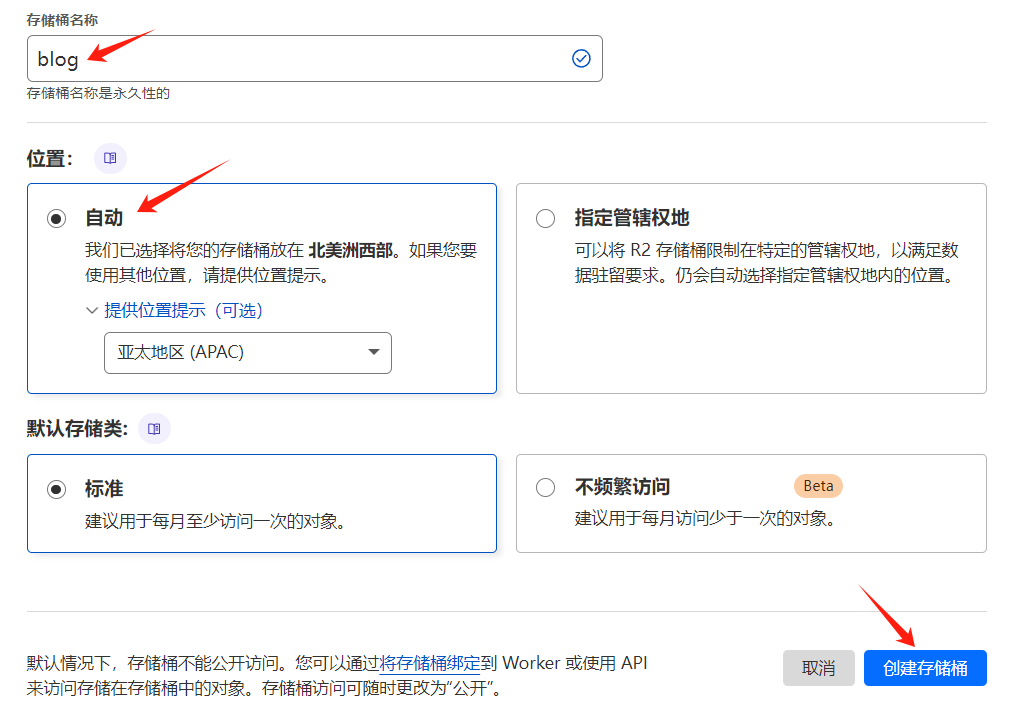
创建完存储桶,但是不允许公共 URL 访问的,要进一步的设置。
点击设置:
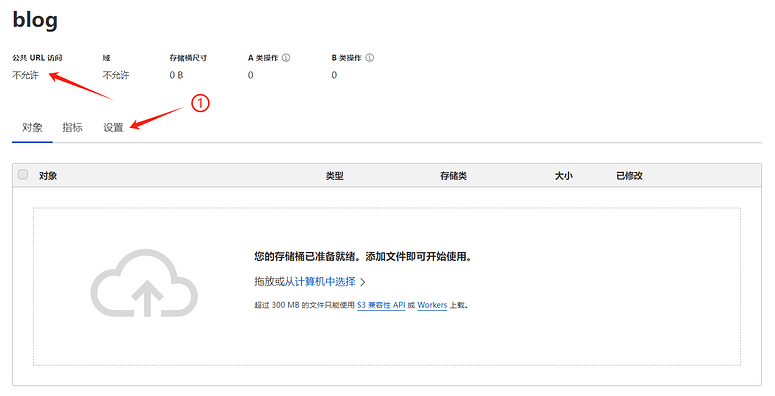
到设置页面 之后往下拉,找到 R2.dev 子域 ,点击允许访问。

设置完后,就可以在对象页面 添加图片啦。上传后,点击对应的图片文件,如下图:
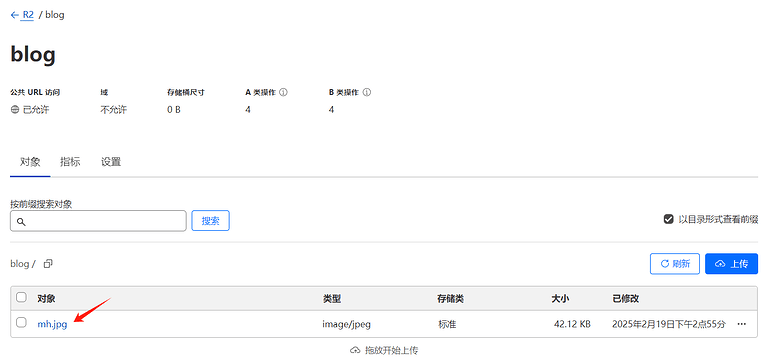
就能找到 Cloudflare 给你分配的图片链接啦 :bili_062:
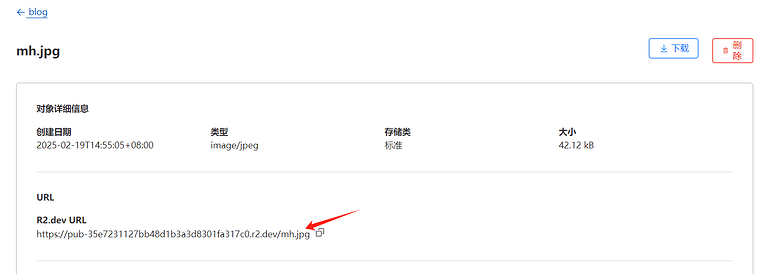
在R2存储桶中的设置里找到自定义域,输入你博客域名的子域名,用cdn、static或者你想用什么都行。
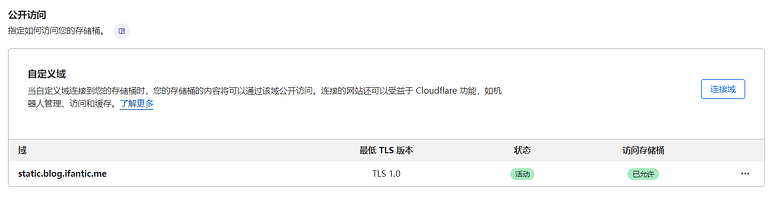
使用PicGo上传图片到R2
创建R2 API令牌
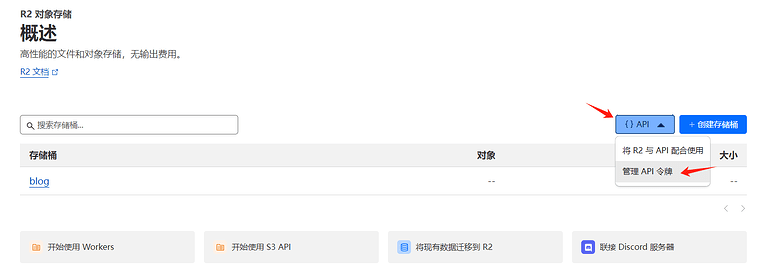
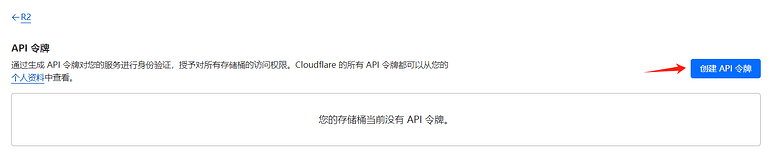
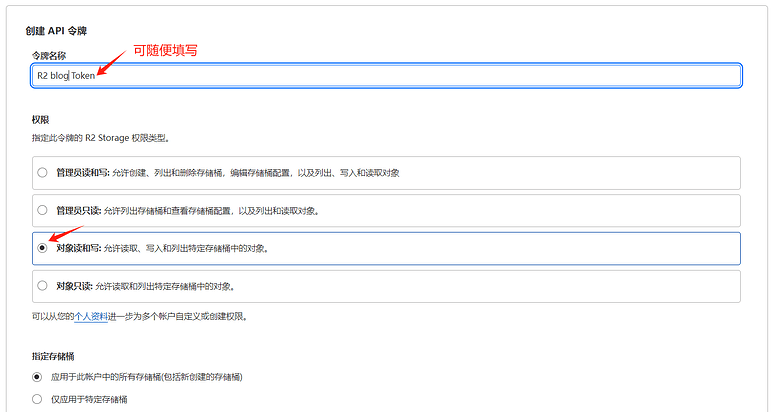
然后点击右下角的 创建 API 令牌
务必保存好这两个,下面用到
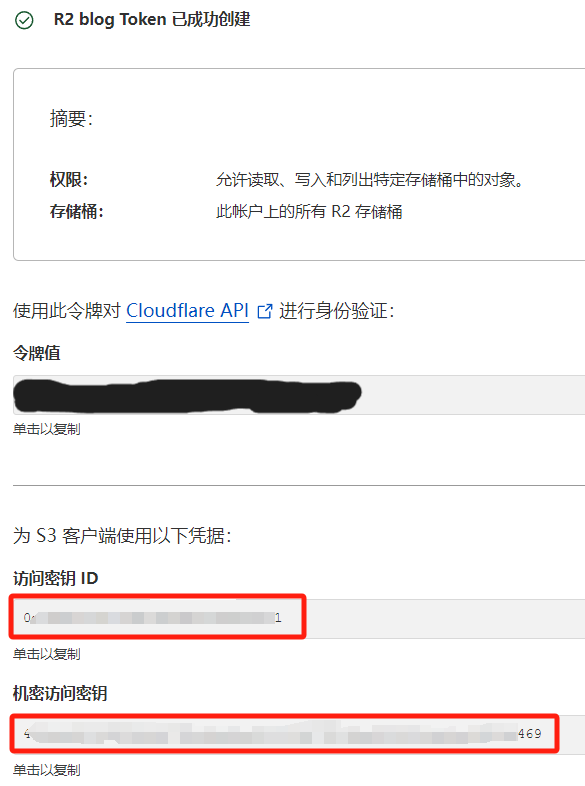
配置PicGo
安装PicGo详细步骤,看这里
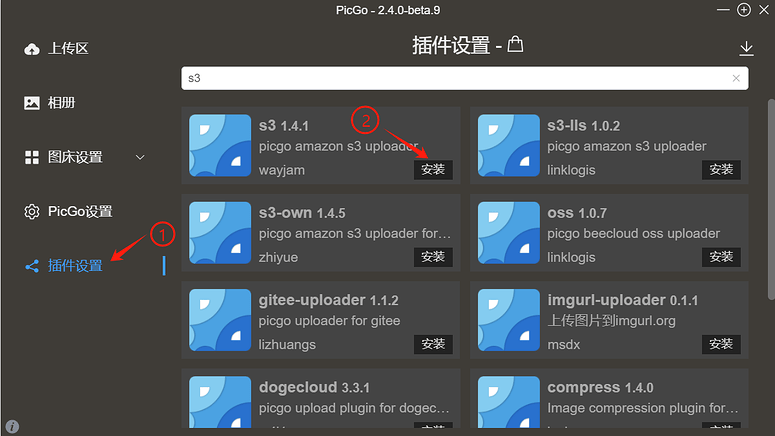
安装S3插件
配置s3
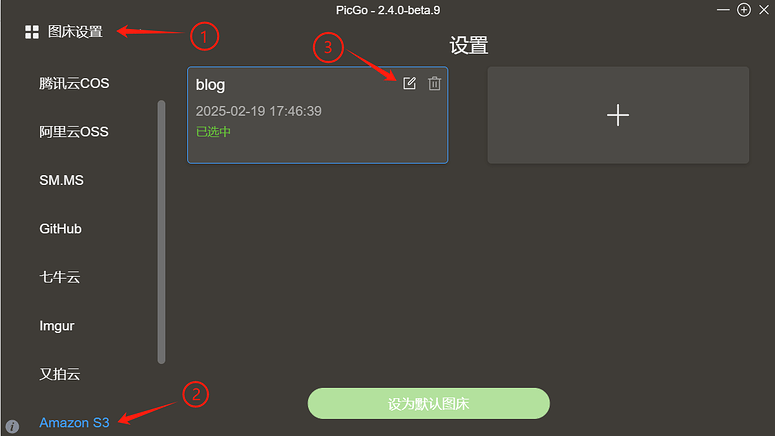
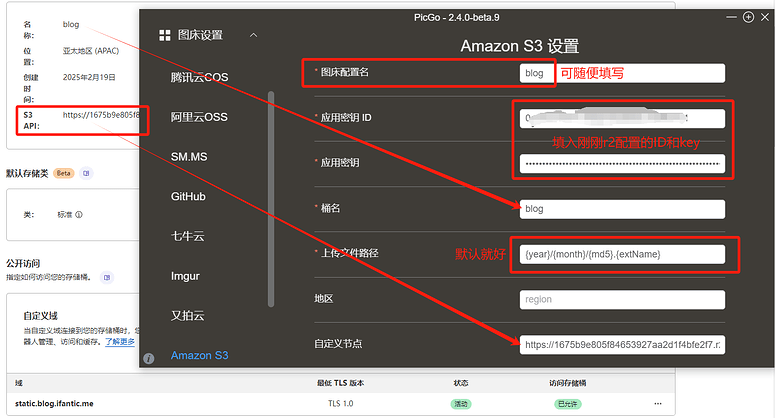
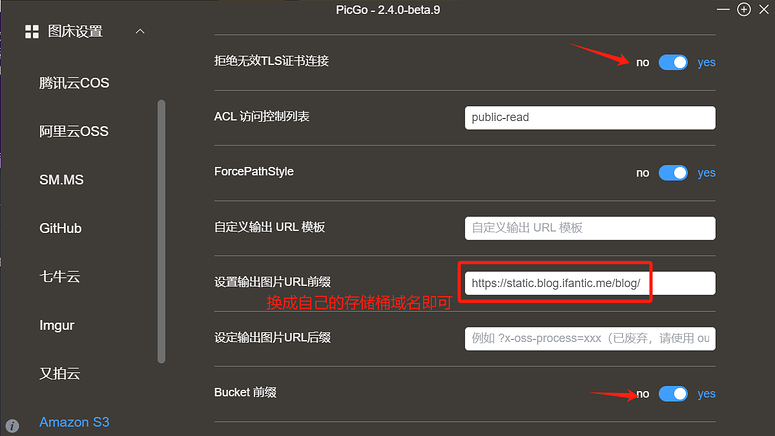
配置完成就能愉快的上传图片啦!让我们大声说: 谢谢赛博菩萨
致谢与参考
- 感谢
@TheSmallHanCat 于 https://linux.do/t/topic/225250 中帮忙薅的 .me 域名
- 参考:
- https://yukari.cyou/blog/#%E9%85%8D%E7%BD%AE%E7%BE%8E%E5%8C%96
- https://imhy.top/p/hugo-stack%E4%B8%BB%E9%A2%98%E4%BD%BF%E7%94%A8%E5%92%8C%E7%BE%8E%E5%8C%96%E9%85%8D%E7%BD%AE/#%E6%B7%BB%E5%8A%A0-stack-%E4%B8%BB%E9%A2%98
- https://blog.huacai.one/post/3